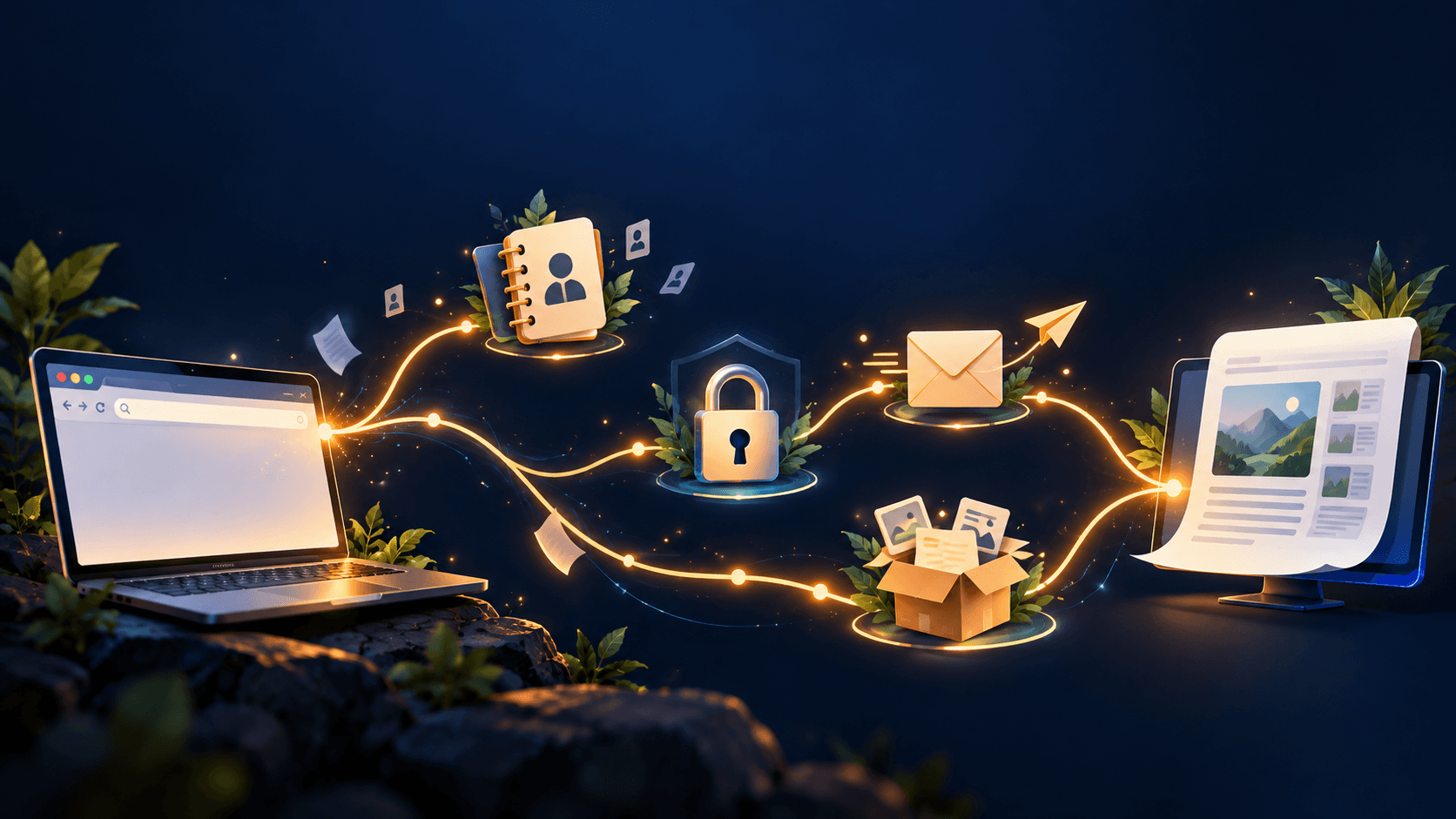

You press Enter and a page appears in under a second, but in that moment your computer looks up an address, shakes hands with a stranger and seals a private envelope. Follow one request on its journey, step by step.
Introduction#
You type a few letters, press Enter, and less than a second later a page appears. It feels like opening a drawer in your own desk.
It isn’t. In that second, your computer asked a stranger for directions, contacted a machine it has never met, agreed on a secret code in public, and requested a document from a computer that might be on another continent. Then it assembled the reply into something you can read.
Let’s slow that second down and walk through it.

A picture to hold onto: a letter to a distant library#
Imagine you want one particular book from a huge library in a city you’ve never visited. You can’t walk in. You have to:
Find the library’s street address.
Make sure someone there is ready to receive you.
Seal your request so nobody along the way can read or alter it.
Write the request and send it through the postal system.
Wait for the library to send back what you asked for.
Unpack the parcel and put the book together.
Your computer does exactly this, with different names. The library is a server, a computer whose job is to hand out web pages. You’ll see this analogy again at each step.
Step 1: Your browser reads what you typed#
Before anything leaves your machine, the browser has to work out what you typed. It might be a web address, or it might be a search. If it looks like an address, the browser splits it into parts.
Take https://knowledgelog.blog/posts/url-journey. A URL (Uniform Resource Locator) is a structured address with three parts that matter here:
Scheme (
https): the language and rules for the conversation.Host (
knowledgelog.blog): which machine you want to talk to.Path (
/posts/url-journey): which thing on that machine you want.
In our analogy, the host is the library and the path is the shelf and title.
The browser also checks whether it already has a recent copy of the page. If so, it may skip most of what follows. A fresh trip across the internet is the slow path, which is why so much effort goes into avoiding it.
Step 2: Finding the address (DNS)#
Here’s the first real problem. Computers on the internet find each other with numbers called IP addresses, such as 203.0.113.7. Humans prefer names. Your computer has the name and needs the number.
The solution is the Domain Name System, or DNS. Think of it as a phone book spread across thousands of computers instead of printed in one volume.
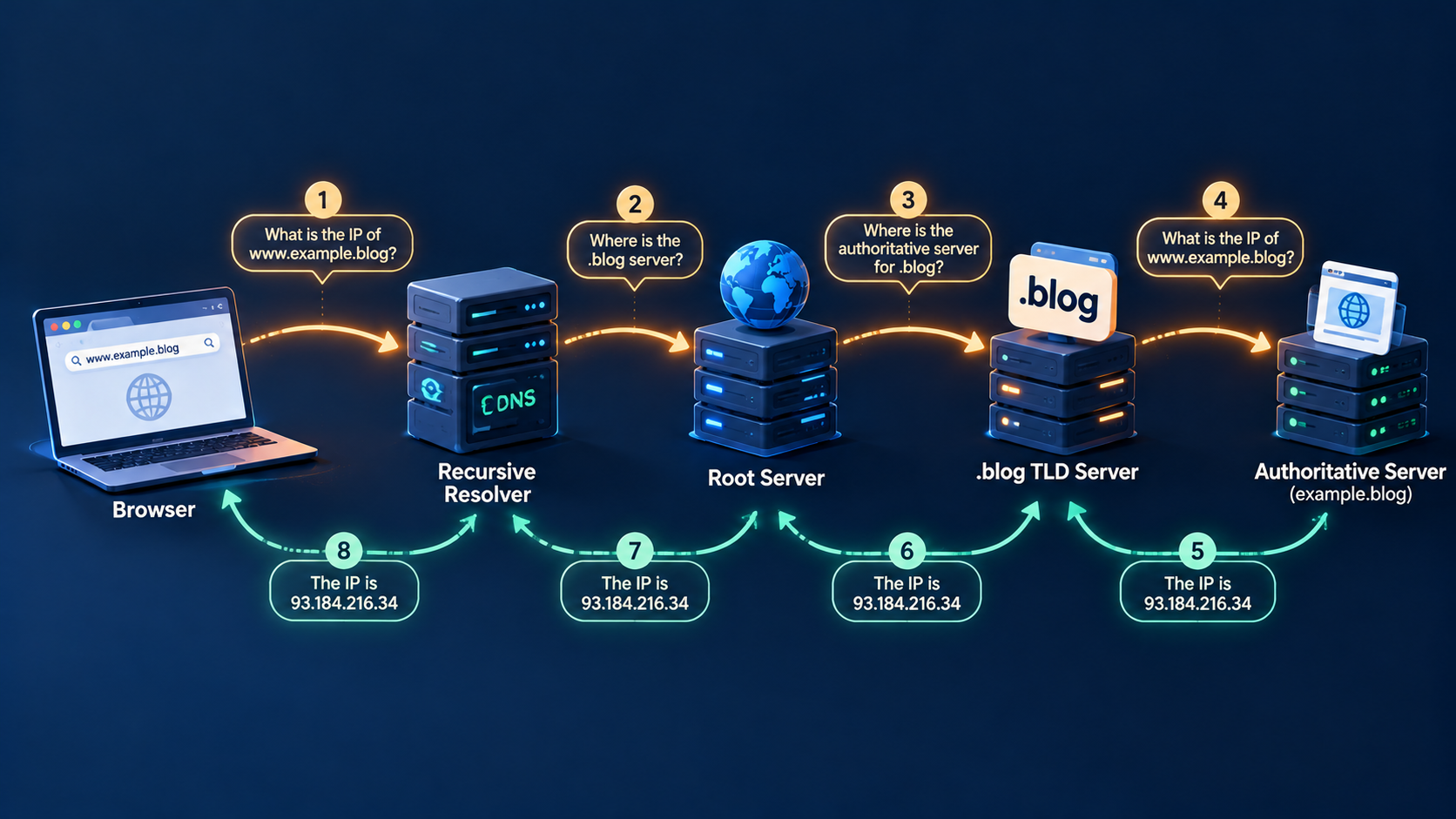
The lookup works roughly like this:
Your computer asks a resolver, a helper machine usually run by your internet provider or a public service you’ve chosen.
If the resolver doesn’t already know the answer, it asks a root server, which doesn’t know the address but knows who handles each ending such as
.comor.blog.That leads to the servers for
.blog, which point to the servers that are the authority onknowledgelog.blog.That final server gives the IP address, which travels back to you.
Nobody holds the whole phone book. Each level only knows who to ask next.
You can watch this yourself. On many computers, typing
nslookup knowledgelog.blogin a terminal (ordig knowledgelog.blogon macOS and Linux) shows the IP address your computer finds for that name.
Why this is usually fast#
Answers are cached, meaning stored temporarily for reuse. Your browser, your operating system and the resolver each remember recent lookups for a limited time set by the domain’s owner. Popular sites are almost always answered from a cache without climbing the whole ladder.
Step 3: Knocking on the door (TCP)#
Now your computer has a number, but it doesn’t yet know whether anyone is home. Before sending the real request, it sets up a connection with a short exchange, a bit like phoning ahead.
The most common way to do this is TCP (Transmission Control Protocol), and it starts with a three-way handshake:
Your computer says: “I’d like to talk.”
The server says: “Fine, I hear you. Do you hear me?”
Your computer says: “Yes.”
It sounds trivial, but it confirms that both sides can send and receive. TCP then keeps track of everything sent, and any piece that goes missing is sent again.
One caveat: newer browsers and servers often use a more recent protocol called QUIC (the basis of HTTP/3), which combines some of these steps. The ideas are similar, but the details differ.
Step 4: Sealing the envelope (TLS)#
Your request will cross many machines owned by many different people, and you’d rather none of them read it. That’s the job of TLS (Transport Layer Security), the technology behind the s in https.
In plain terms, two things happen:
Identity: The server shows a certificate, a digital document vouching that this server really is
knowledgelog.blog. The certificate is signed by a certificate authority, an organization your browser already trusts. It’s like a library showing a license that a recognized authority has stamped.Secrecy: The two computers use clever mathematics to agree on a shared secret key while talking in the open, so eavesdroppers can’t work it out from what they overhear. From then on, everything is scrambled with that key.
The mathematics is beautiful but too long for this post. What matters is the result: an envelope that only you and the library can open.
The padlock icon means your connection to the site is encrypted and the site’s identity was verified. It does not mean the site is honest or safe. A fraudulent site can also have a valid certificate.
If your browser shows a full-page certificate warning, don’t click through it just to get to the page, especially if you’re about to enter a password or payment details. The warning exists because something about the sealed-envelope promise has failed.
Step 5: Asking for the page (HTTP)#
With a private connection ready, your browser finally asks for what you wanted, using HTTP (Hypertext Transfer Protocol), the standard format for requests and replies on the web.
A request is surprisingly simple. In essence it says: “GET me /posts/url-journey from knowledgelog.blog,” along with some extra details such as the languages you prefer and what kind of browser you are.
The server replies with a status code, a short number that summarizes the outcome, followed by the content:
200: here’s what you asked for.301or302: it has moved, so go here instead.404: I can’t find that.500: something went wrong on my side.
You’ve probably met 404 before. It’s just one of these replies.
Behind that single reply, the server may be doing a lot. It might pass your request to another computer, read from a database, or answer from a CDN (content delivery network), a set of servers spread around the world so that your request is answered by one that’s closer to you. From the outside you can’t tell which, and you don’t need to.
The postal system in between#
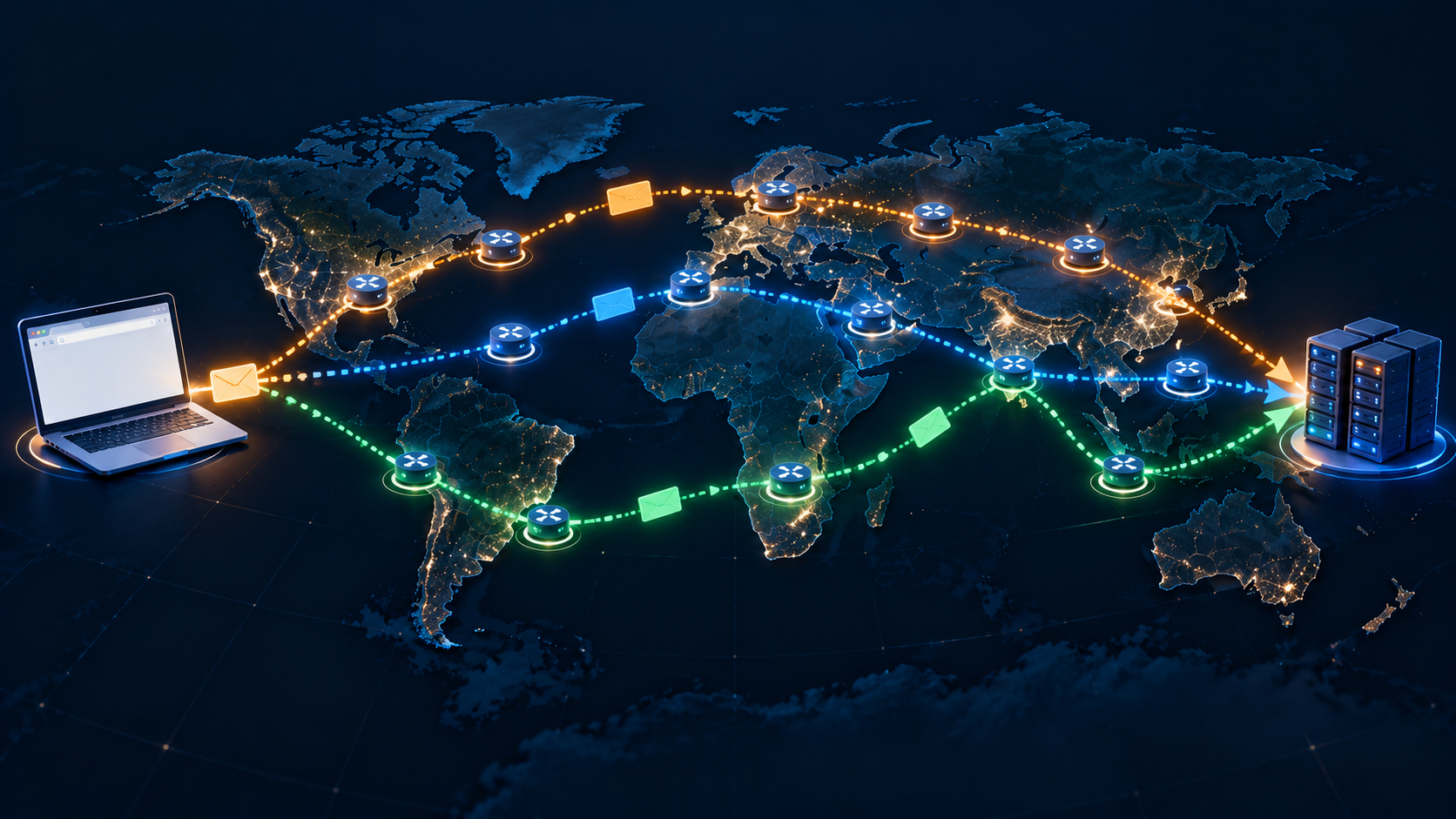
We skipped something. Between your computer and the server there is no direct cable. Your request is chopped into small chunks called packets, each labeled with where it came from and where it’s going. Special machines called routers pass each packet toward its destination, one hop at a time. No router sees the whole route. Each knows only the next best direction.
This is the same kind of idea as in [Abstraction: The Most Fundamental Idea in Computer Science]. Your browser doesn’t think about cables, packets or routers. It hands a message to a lower layer and trusts it to deliver. Each layer hides the mess beneath it, and that’s the only reason the web is usable.
Each step in this post is also a small, well-defined procedure, much like those in [What Is an Algorithm and Why It Matters]: do this, then that, and handle failure like so.
To see the hops yourself, try
traceroute knowledgelog.blog(macOS and Linux) ortracert knowledgelog.blog(Windows). Some routers don’t respond, so you’ll often see gaps, which is normal.
Step 6: Unpacking the parcel (rendering)#
The reply arrives, but it’s not yet a page. It’s mostly text, an HTML file (HyperText Markup Language) describing the page’s structure: this is a heading, this is a paragraph, this is an image.
The browser then:
Parses the HTML, reading it and building an internal tree of the page’s elements.
Discovers more files it needs, such as style sheets (CSS), images, fonts and scripts, and sends fresh requests for each. Many of the steps above repeat, though connections that are already open are reused.
Calculates layout, working out how big each element is and where it goes on your screen.
Paints the result onto your display.
If the page includes JavaScript, the browser runs it too, and it can change the page after it first appears. That’s why some pages seem to finish loading in stages.
In our library, this is you opening the parcel and finding the book arrived in chapters, with illustrations in a separate box. You assemble it and start reading.
What I’ve simplified#
Real browsers overlap many of these steps and use shortcuts, such as opening connections before you click. The order I gave is a way of thinking, not a precise timeline. I’ve also not covered proxies, VPNs, or what happens on a company network, all of which add stages. If you want to be sure about a detail, the official specifications are a good place to check, as the protocols are all openly documented.
Key takeaways#
A URL is a structured address: scheme, host and path.
DNS converts a human-friendly name into an IP address, through a chain of servers that each know who to ask next.
TCP (or QUIC) sets up a reliable connection, and TLS makes it private and verifies the server’s identity.
HTTP is the request-and-reply format, with status codes like
200and404.Data travels as packets, passed along hop by hop by routers.
The browser turns the reply into a page by parsing, fetching more files, laying it out and painting.
Each layer hides complexity from the one above it, which is why the whole system feels simple.
One question to take with you: Almost none of the machines that carried your request know you, the site or each other, yet the page still arrived intact. What does that tell you about how much trust a system can run on?